PNG to PDF Converter
Convert PNG to PDF from one picture or a whole batch of screenshots and get a single multi-page file. Your images stay on your own device, because the PDF is built inside this browser tab.
Converted on this device. Your files are never uploaded.
How it works
Drop in your PNGs
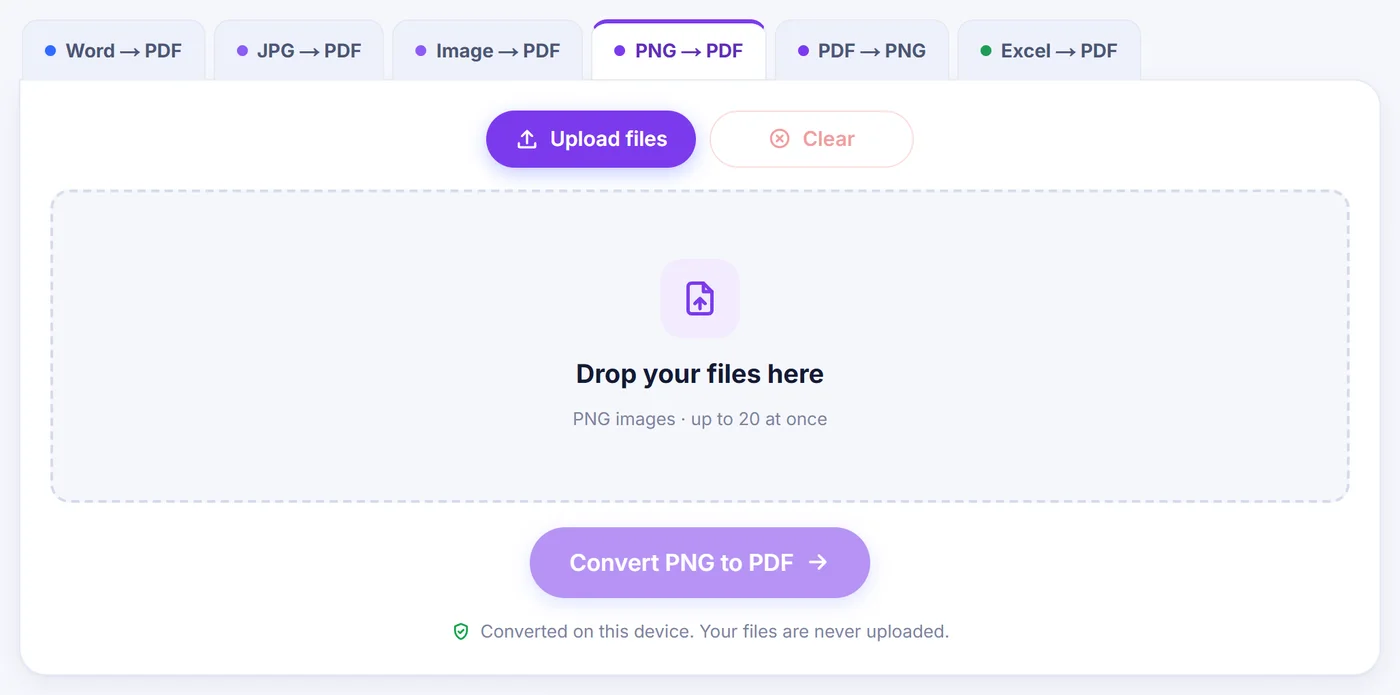
Add up to 20 images from your computer or phone and drag the cards into the order you want before you press Convert PNG to PDF.
Arrange the pages
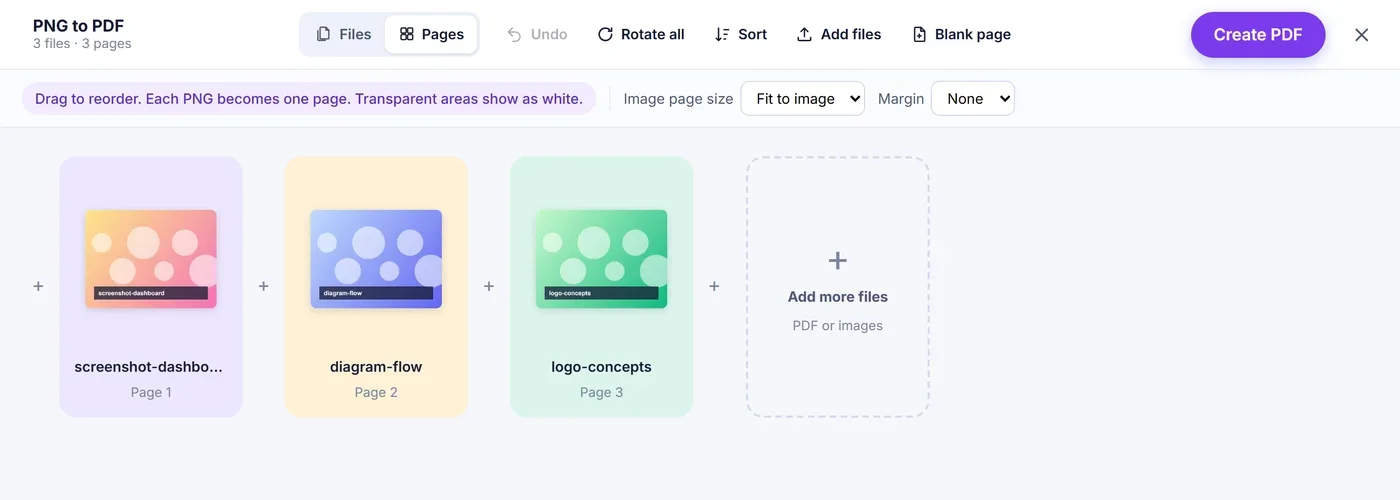
Drag cards into place, rotate or duplicate a page, add a blank sheet, then choose a page size and margin.
Create and save
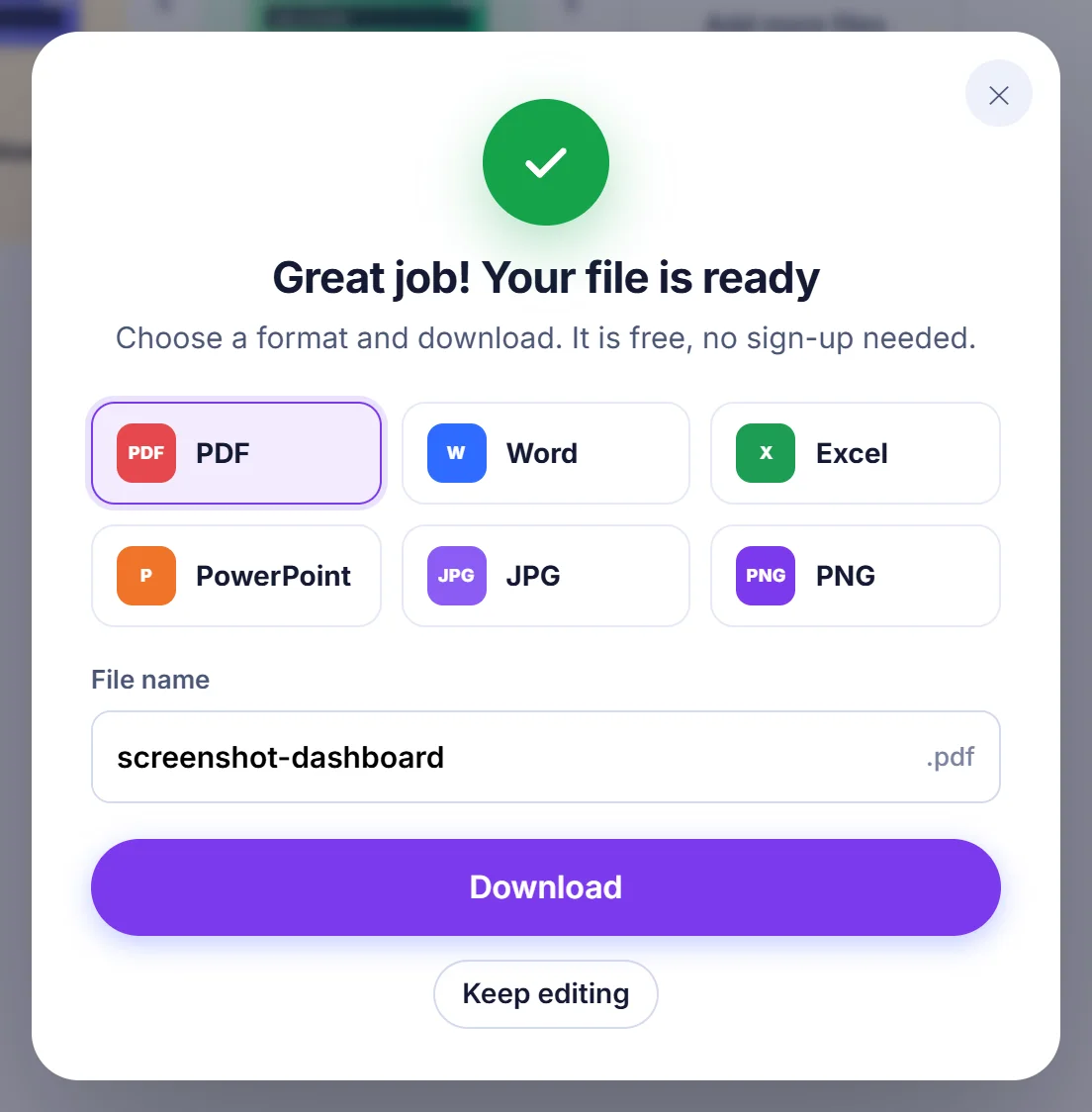
Press Create PDF and download one document named after your first image, ready to email, print or archive.
Why people turn PNG images into a PDF
PNG is the format your computer reaches for when you take a screenshot, export a chart, save a diagram or scan something with a phone app that prefers sharp edges over small files. It is excellent for crisp text and flat colours, but a folder of loose PNGs is awkward to share. Ten attachments arrive in random order, some mail clients shrink them, and the person on the other end has to open each one separately.
A PDF solves that. It keeps every image as a page, in the sequence you chose, inside a single file that opens the same way on a laptop, a tablet or an office printer. Typical reasons to make one:
- sending a step-by-step bug report built from screenshots to a support team;
- handing in worksheets or notes that a scanning app saved as PNG pages;
- bundling invoices, tickets or confirmations saved as images for an expense claim;
- printing a set of design mock-ups or infographics on A4 or US Letter paper;
- archiving a chat thread or a web page captured in several pieces.
How to convert PNG to PDF on this page
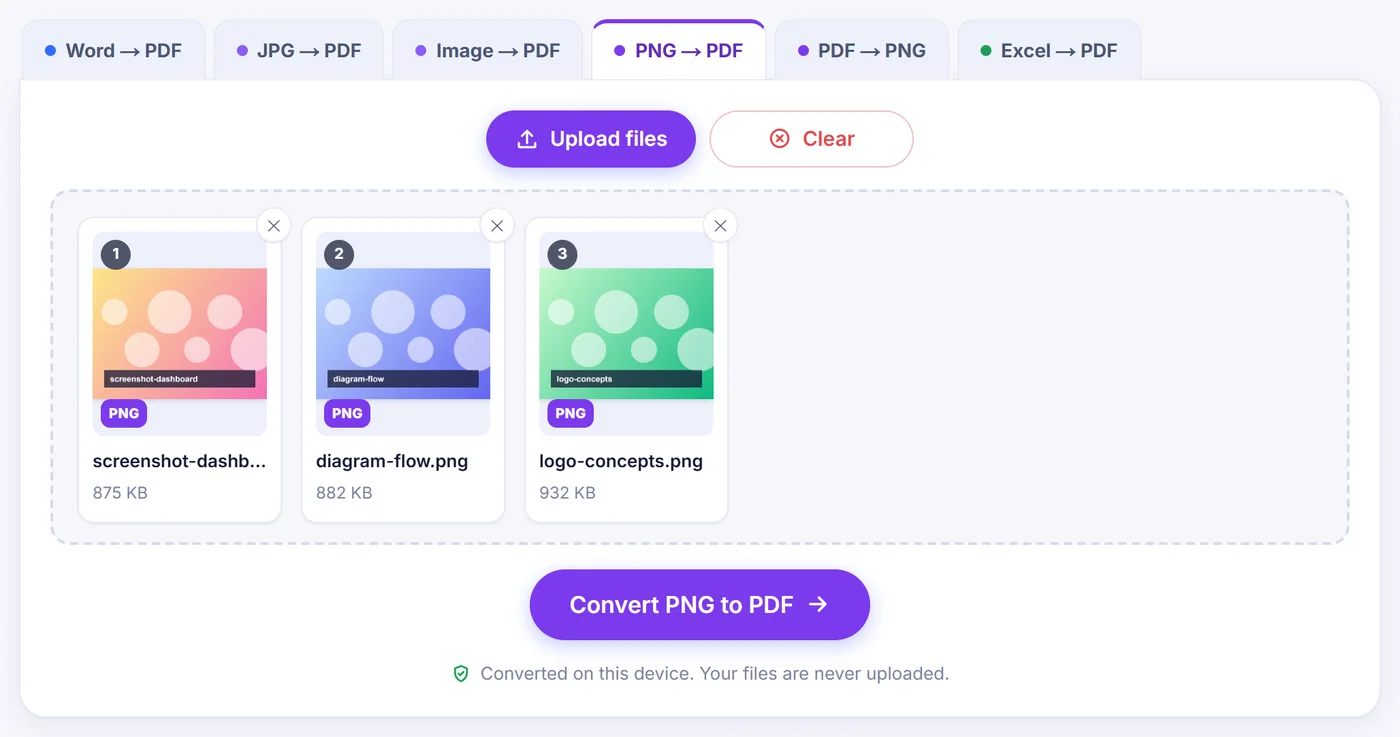
Choose your files with the button above or drag them onto the page, then press Convert PNG to PDF. The pages keep the order of the file cards, so drag the cards around first if you want a different sequence. The next screen is a page workspace where each image is shown as a card, and you can still move pages there.
Ordering and editing
Drag a card to move it, or use the small arrows on each card to nudge it left or right. Every card also has buttons to preview the page larger, duplicate it, rotate it by 90 degrees or remove it. Rotate all turns every page at once, which helps when a whole batch was captured sideways. Blank page adds an empty sheet at the end, the same size as the last page; drag it wherever you want a separator. Made a mistake? Undo (or Ctrl+Z) steps back. The + buttons let you add more images, or even the pages of an existing PDF, at any position.
Page size and margins
The page size menu has three choices:
- Fit to image (the default) makes each page exactly the shape of its picture. Tall phone screenshots become tall pages and wide charts become wide ones, with nothing cropped and no empty bands. Very big images get a page whose longest side is capped at 1,600 points, while the picture inside still keeps every original pixel.
- A4 and Letter give you standard paper. Each image is centred and scaled to fill the sheet as far as its proportions allow, and landscape images automatically get a landscape page.
The margin menu adds a white border of none, small or large around each picture. A small margin usually looks best for printing, because many printers cannot reach the very edge of the paper. When everything looks right, press Create PDF. The file takes the name of the first image in your list, so receipt-march.png becomes receipt-march.pdf; moving pages around later does not rename it.
What stays the same and what changes
The pixels of your PNG are placed in the PDF without being turned into a JPEG, so sharp lettering in a screenshot does not pick up blurry halos. Zooming in on the finished page shows the same detail you had in the original file.
A few things do behave differently:
- Transparency. A PNG can have see-through areas. On a PDF page those areas show the white of the page, so a logo with a transparent background sits on white.
- Animation. Animated PNGs (APNG) are accepted, but only the first frame is placed on the page, and a short note tells you so.
- Text is still a picture. Words inside a screenshot remain part of the image. You can read and print them, but you cannot select or search them, because no text recognition is applied.
- Size on disk. PNG compression is lossless, so a PDF made from large, photo-like PNGs can be fairly heavy. Flat screenshots and diagrams stay compact.
Fixes for files that refuse to cooperate
Before opening the workspace, the converter quietly checks each file on your device. It reads the first bytes rather than trusting the extension, so a JPG, WEBP or GIF that was saved with a .png name still converts. Files that arrive without a proper type label, something Windows and Android do fairly often, are labelled correctly before they go any further.
Some damaged images are repaired automatically. An iPhone can produce a special PNG variant that most browsers outside Safari cannot open; the tool tries to redraw it as a normal PNG. If your browser cannot decode it at all, you will see a message suggesting you open the page in Safari or export the picture again. A PNG that was cut off during a download or copy is redrawn as well whenever the browser can still decode it. Completely empty files, and files that are not images, are skipped and listed by name so you know exactly which ones were left out.
A PNG above 40 megapixels gets a short note that building the PDF may take a little longer. On a phone with limited memory, a long batch of huge images can be too much; if the tool reports that the device ran out of memory, convert the files in smaller groups or shrink them first.
Tips for a cleaner result
- Rename files with leading numbers (01, 02, 03) before adding them, and the order will be right from the start.
- Crop screenshots to the useful area first; borders and browser toolbars waste page space.
- Choose Fit to image for documents read on screen and A4 or Letter for anything that will be printed or attached to an official form.
- Use the preview button on a card to double-check small text before you create the file.
Private by design
Nothing you add here travels to a server. The checking, repairing and PDF building are done by code running in your browser, so the only traffic is the page and its scripts loading. There is no account to create, no email to enter and no watermark stamped on your pages. When you close the tab, the images and the finished PDF vanish from memory along with it, so there is nothing left behind that anyone would need to delete. The converter runs in current versions of Chrome, Edge, Firefox and Safari on Windows, macOS, Linux, Android, iPhone and iPad.
Frequently asked questions
How do I combine several PNG files into one PDF?
Select all of them at once (up to 20). They keep the order of the file cards, you can drag them into any other order, and Create PDF saves them together as one multi-page document.
Will converting PNG to PDF reduce image quality?
No. The image data is embedded without JPEG compression, so screenshots and diagrams stay as sharp as the original files.
What happens to the transparent background of my PNG?
Transparent areas appear white on the PDF page. If you need a coloured background, add it in an image editor before converting.
Can I make the PDF pages A4 or Letter size?
Yes. Pick A4 or Letter in the page size menu and each image is centred and scaled to the sheet, turning landscape automatically for wide pictures. A small or large margin can be added too.
Why does my iPhone PNG not open in the converter?
Some iPhone PNGs use an Apple-only variant. The tool tries to repair it automatically; if your browser still cannot read it, open this page in Safari or export the image again as a normal PNG or JPG.
Are my PNG images uploaded anywhere?
No. Everything happens inside your browser on your own device, and nothing is sent to a server, so closing the tab removes the files completely.